
Improving relevance is still the easiest thing you can do to drive organic traffic. While most published content is not performing at all in search, companies continue publishing more content than they optimize articles that already rank well.
With GSC Helper 2.4, the content optimization tool was introduced. It retrieves the search queries for a page and compares them against the webpage content.
The content optimization tool can be run using the performance reports.
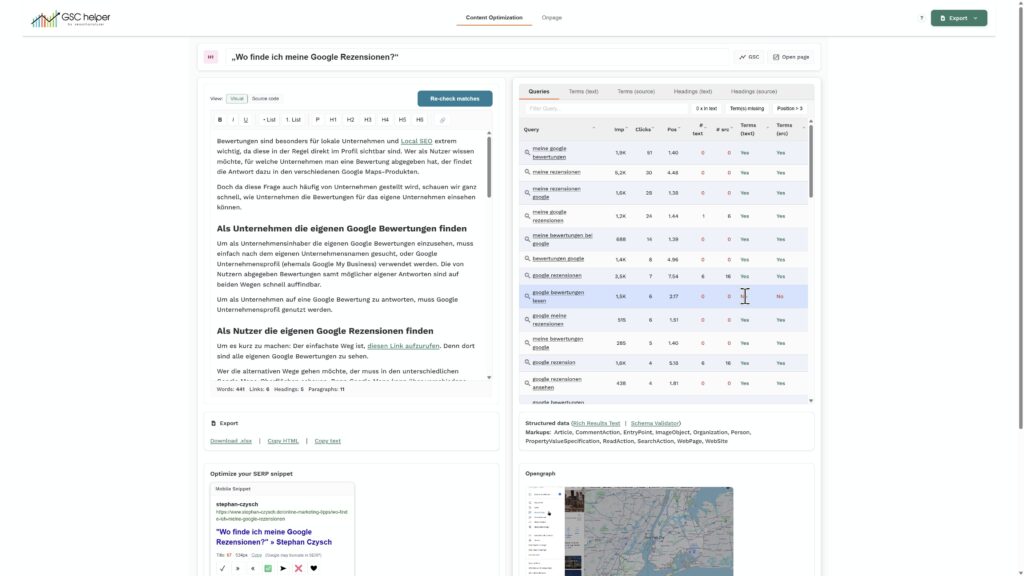
Highlights
- Automatic webpage crawling: After access is granted, GSC Helper opens the web page in your browser to retrieve the source code.
- Search query analysis based on query and terms: Keyword occurrence is checked based on the exact search query and its single terms.
How to
- Open your website in search analytics
- Click on the „Content Optimization“ button (or run from the context menu)
- Enter the URL you want to to optimize
- Usually, you can ignore the advanced settings. Hover over the i for more information on why it might be needed.
- On first run, additional access needs to be granted
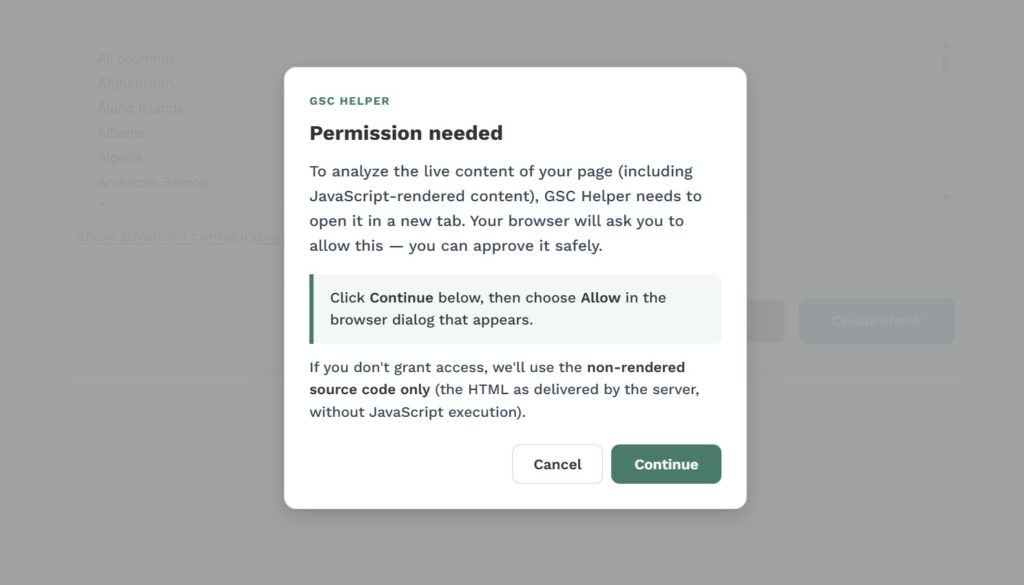
- In the following pop-up, click on „allow.“ In case you accidentally hit „Deny,“ rerun the process.

- After confirmation, the URL will open in a new tab, and the page will automatically scroll to load any content triggered by scroll events.
- To start with „clean“ content, copy it from the backend of your website to the editor. Otherwise, CSS and other elements will be part of your texts.
- Check for missing important search queries or terms, update your content accordingly, and reupload it to your website. Hover „no“ values in the Terms column to see which term wasn’t found in the text or source code.
- Click the „Re-Check matches“ button above the text input to validate whether the previously missing queries or terms now match. When done, download your updated content from the export function and upload your optimized content to the website.
How to work with the report
Note: It’s strongly recommended to copy your content directly from your backend to the editor. Otherwise CSS and unnecessary markup will mess up your content.
In the different tabs to the right, you can see your search queries and their single terms.
- „# text“ and „# src“ tell you if the query has been found „as searched“ in either the text or the source code
- The „term“ views aggregate the search query data by single terms, and check in which HTML markups the term was found
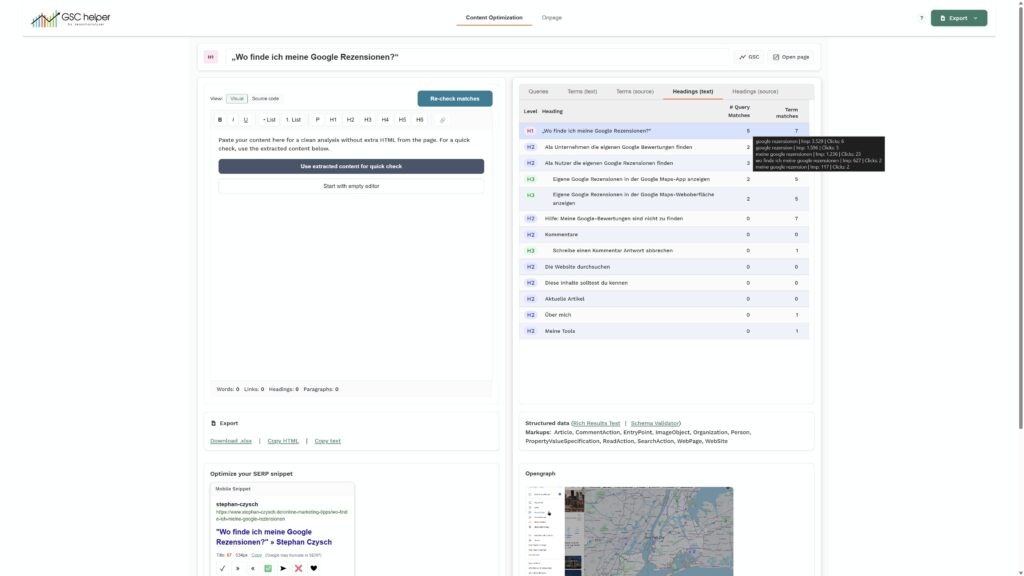
Use the filters to find underserved search queries, or terms included in many queries that aren’t found yet (prominently) on the page.
