
Most GSC Helper features read what is already on your screen. GSC API Query goes further: it calls the official Google Search Console Search Analytics API directly from your browser — with the same property, date range, and filters you were just using in Search Performance.
That means more than 1,000 rows, custom dimension combinations, and exports without copying tables from the UI.
Unlike the rest of GSC Helper, this feature requires a one-time Google sign-in (OAuth). Queries go from your browser to Google’s API.
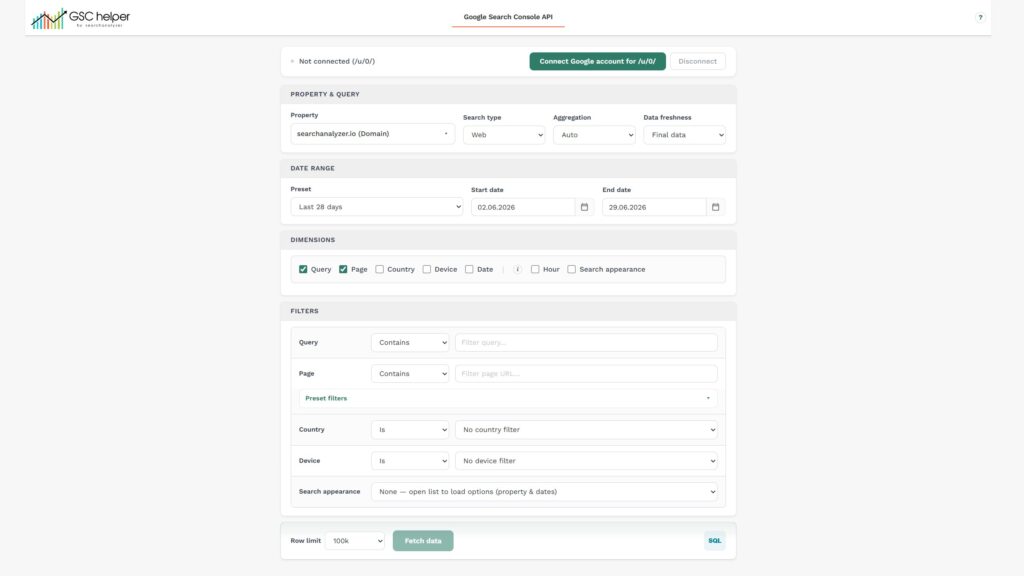
How to open it
From Search Performance in Google Search Console:
- Use the API button in the GSC Helper action bar (below the filter box), or
- Right-click → GSC Helper → GSC API Query.
GSC Helper opens the API page with your current context pre-filled:
- Property (
resource_id) - Date range (including Set-date presets from the GSC URL)
- Search type (Web, Image, Video, News, Discover, Google News)
- Country and device filters (if set in GSC)
- Query and page filters from the performance report
Adjust anything before you fetch — or run the query as-is.
Tip: You can hide the API shortcut in Options → General → Performance action bar if you don’t need it on every view.
First-time setup: Connect Google
- On the API page, click Connect Google account.
- Approve access for the scope
webmasters.readonly(read-only Search Console data). - Your property list loads automatically.
Switch account: Use Switch Google account… if the connected account doesn’t match the GSC profile you use in the browser.
Disconnect: Removes stored tokens from extension storage on this profile. You can reconnect anytime.
Why OAuth is needed here
GSC Helper’s overlay features parse the Search Console UI in your tab — no Google login beyond your normal GSC session.
The Search Analytics API is a separate Google endpoint. The extension needs an API token with webmasters.readonly to request data on your behalf. That token is stored locally in the extension (per Chrome profile) and used only for API calls you trigger.
Configure your query
Property & query
| Setting | Purpose |
|---|---|
| Property | URL-prefix or domain property from your verified sites |
| Search type | Web, Image, Video, News, Discover, Google News |
| Aggregation | Auto, byPage, or byProperty |
| Data freshness | Final data, including fresh data, or hourly (up to 10 days) |
Date range
Use the same date presets as elsewhere in GSC Helper (Last 28 days, Last full month, etc.) or enter start/end dates manually.
When opened from GSC, dates match your current performance report.
Dimensions
Select one or more:
- Query, Page, Country, Device, Date
- Hour — requires Data freshness: Hourly data; must be the only dimension
- Search appearance — must be used alone (selecting it clears other dimensions)
Note: Query dimension and query filters are not available for Discover or Google News.
Filters
Combine filters with AND logic (API standard):
- Query / Page — operators include contains, equals, including/excluding RegEx, and more
- Preset filters — same ready-made filters as in the GSC context menu
- Custom RegEx — your saved patterns from Options → RegEx
- Country / Device — pick from lists
- Search appearance — loaded for your property and date range when you open the dropdown
Filters from your GSC URL are applied automatically when you open the page from Search Performance.
Row limit
Choose how many rows to fetch (5k up to 500k, or custom). GSC Helper paginates automatically (25,000 rows per API request).
Large fetches (>250k rows) show a confirmation first. Use Stop during a fetch to keep rows loaded so far — still exportable as CSV or XLSX.
The on-screen table previews up to 2,500 rows; exports contain the full fetched dataset.
Results & export
After Fetch data:
- Sortable table with clicks, impressions, CTR, position, plus your selected dimensions
- Save table as XLSX or CSV — full result set, not just the preview
- BigQuery button — opens gscbigquery.com with your current configuration as SQL (same idea as the BigQuery shortcut in GSC)
Highlights
- Break the 1,000-row UI limit — fetch up to 500,000 rows via the official API.
- Starts from your GSC view — property, dates, and filters carry over automatically.
- Full Search Analytics flexibility — dimensions, aggregation, freshness, and API filters in one place.
- RegEx & presets built in — reuse GSC Helper filters without retyping them.
- Paginated fetch with progress — stop early and still export partial results.
- Read-only OAuth —
webmasters.readonlyscope; no write access to Search Console. - Direct to Google — API requests go from your browser to
googleapis.com; GSC Helper does not proxy your search data.
Good to know
Search Analytics only.
This page uses the Search Analytics API (searchAnalytics/query). It does not replace Index Insights, Crawl Stats, or URL Inspection exports — those use other GSC mechanisms.
API quotas apply.
Google enforces Search Console API limits per property and day. Very large or frequent fetches may hit quota errors (HTTP 403). Reduce row limits or narrow date ranges if that happens.
Sorting & tail rows.
The API returns rows sorted by clicks (descending). For very large limits, GSC Helper can stop early when consecutive pages contain only zero-click rows — saving time on long tails of impression-only URLs.
Multi-profile GSC users.
If you use /u/1/, /u/2/, etc. in Search Console, tokens and property lists are kept per Chrome profile / GSC account slot — matching how you work in GSC.
Troubleshooting
| Issue | What to try |
|---|---|
| Not connected | Click Connect Google account and complete OAuth. |
| 403 / quota exceeded | Lower row limit, shorten date range, or wait and retry later. |
| Property missing from list | Confirm the Google account has access to that property in GSC. |
| Query filter greyed out | Expected on Discover / Google News. |
| Hour dimension won’t combine | Set Hourly data freshness and use Hour as the only dimension. |
| Search appearance cleared other dims | By API design — use the Search appearance filter instead for combined analysis. |
| Fetch button disabled | Connect Google first; check that at least one dimension is selected. |
